Table of Contents
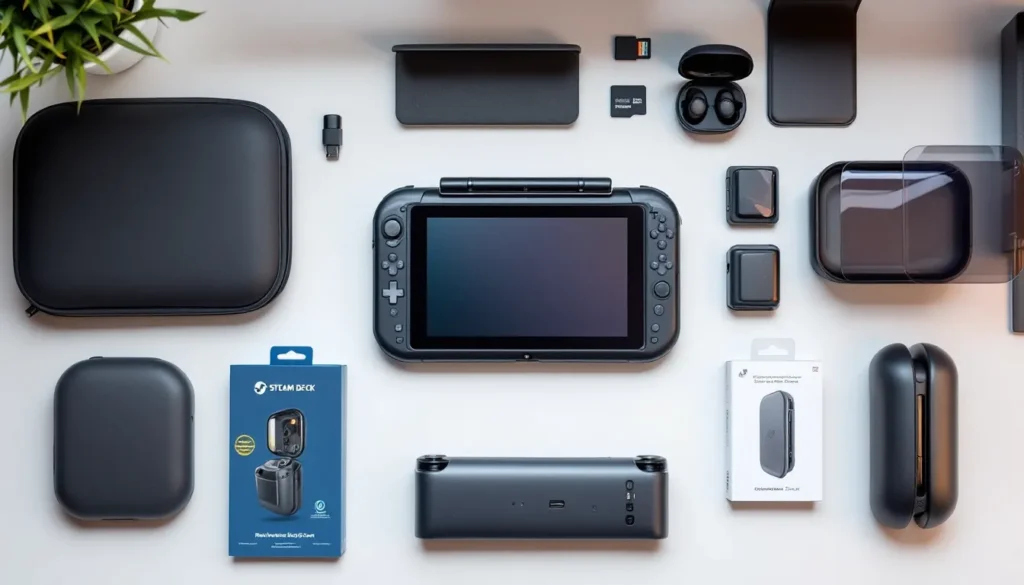
ToggleThe Steam Deck revolutionized portable PC gaming when it dropped, and by 2026, it’s cemented itself as the gold standard for handheld gaming. But here’s the thing: owning a Steam Deck is just the foundation. To truly maximize your experience, whether you’re grinding through massive single-player campaigns, tackling competitive online matches, or just wanting your device to last longer, you need the right accessories. The best Steam Deck accessories transform how you play, protect your investment, and eliminate the friction between you and the games you love. This guide covers the essential, the worthwhile, and the game-changing accessories that actually matter for your specific playstyle and needs.
Key Takeaways
- Essential Steam Deck accessories like protective cases, screen protectors, and microSD cards cost under $100 and prevent catastrophic failures that could damage your $400+ investment.
- Active cooling solutions reduce temperatures by 10–15°C and prevent thermal throttling during demanding games, but cost extra battery life, making them ideal for docked play rather than portability.
- Grip cases and ergonomic accessories are must-haves if you play handheld for 2+ hours regularly, as they dramatically reduce hand fatigue and strain from the Deck’s flat-sided design.
- Docking infrastructure with external displays and quality USB-C hubs unlocks higher resolutions and frame rates by removing thermal constraints, transforming your Steam Deck into a makeshift gaming PC.
- Prioritize reliability over quantity by starting with protection and addressing your biggest pain point—whether that’s stick drift, storage capacity, or comfort—before layering in premium upgrades.
- Independent reviews from gamers with your specific use case and playing the same games provide far better insights than affiliate marketing, helping you choose Steam Deck accessories that actually solve your real-world needs.
Why Steam Deck Accessories Matter for Your Gaming Experience
Your Steam Deck is a powerful piece of hardware, but it’s also a delicate handheld device that lives in your backpack, gets tossed around, and endures extended gaming sessions. Without proper accessories, you’re leaving performance on the table and risking damage that’ll cut your device’s lifespan short.
Accessories serve multiple purposes. Protection keeps your Deck safe from drops, scratches, and wear, a cracked screen or damaged analog stick turns a $400+ investment into an expensive brick. Performance upgrades like cooling solutions prevent thermal throttling during demanding games, directly impacting your frame rates and gameplay smoothness. Comfort accessories reduce hand fatigue during marathon sessions, meaning you can actually play for hours without your hands cramping up. And quality-of-life upgrades like external displays, hubs, and storage solutions extend what your Deck can do.
The gaming accessory market has exploded since the Deck’s launch. You’ve got options ranging from cheap no-name products that’ll fail in weeks to premium solutions engineered specifically for the Deck’s quirks. Not every accessory deserves a spot in your setup, but the right ones make a measurable difference in how much you enjoy using your device.
Essential Protection: Cases and Carrying Solutions
If you’re taking your Steam Deck anywhere beyond your couch, protection isn’t optional, it’s non-negotiable. A damaged Deck is a sad Deck, and repair costs add up fast.
Hard Shell Protective Cases
Hard shell cases are your first line of defense against drops, impacts, and general abuse. Unlike soft sleeves, they actually absorb shock and prevent your screen from cracking if your bag gets thrown around.
The Killswitch Case Steam Deck has become the standard-bearer in this category. It’s a hard-shell design with rubberized edges that provides genuine protection without being unnecessarily bulky. The Killswitch Case Steam Deck fits the device snugly, includes a customizable faceplate for aesthetics, and doesn’t add excessive weight to your bag. If you’re commuting, traveling, or just want peace of mind, this is the go-to choice.
Other solid options include the JSAUX hard case (more affordable, still reliable) and the official Valve carrying case (minimal but functional). Choose based on whether you prioritize maximum protection (Killswitch) or minimalist design (Valve’s offering).
Carrying Bags and Sleeves
If you’re moving your Deck frequently, a dedicated carrying solution beats shoving it in your backpack’s random pocket. Sleeves offer lightweight protection and fit neatly alongside other gear.
Look for sleeves with padded interiors and water-resistant exteriors. The JSAUX carrying bag and Spigen sleeves are reliable mid-range picks that won’t expensive. Premium options like the SCUF bag offer better organization and carry systems, but they cost more. Your choice depends on your lifestyle, if you’re throwing your Deck in a backpack daily, investing in proper carrying gear prevents regrets later.
Display and Visual Enhancements
The Deck’s 7-inch display is solid for a handheld, but there are ways to enhance what you see and how you play.
Screen Protectors and Anti-Glare Films
Screen protectors are cheap insurance against accidental scratches. The Deck’s screen can handle scratches reasonably well, but a quality protector costs $10–15 and eliminates the worry entirely.
Tempered glass protectors from brands like Spigen and ESR work well and maintain display clarity. Anti-glare films reduce reflections if you’re playing in bright environments, this is genuinely useful if you take your Deck outside frequently. The trade-off is slightly reduced sharpness, so only add anti-glare if glare actually bothers you.
Apply these early and carefully. A poorly applied protector creates bubbles and hurts responsiveness more than it helps. Take your time or pay a small premium for professionally installed options.
Docking Stations and External Displays
One of the Deck’s best-kept features is its ability to dock and output to external displays. A docking station transforms your handheld into a makeshift gaming PC, and it’s fantastic for playing games that benefit from a bigger screen or controller setup.
The official Valve docking station outputs to 4K displays and includes Ethernet for better online stability, this is the safest choice if you want guaranteed compatibility. Third-party alternatives like the JSAUX dock and Lenovo dock offer similar functionality at lower prices, though quality varies.
When docked, your Deck can push higher resolutions and frame rates since it’s no longer thermally constrained by the handheld form factor. Games that struggle at native res suddenly feel smooth. If you’re planning to play at home regularly, docking infrastructure is worth the investment.
Controls and Input Accessories
The Deck’s analog sticks are a known weakness. Extended use causes stick drift, and even new units can develop it over time. Having replacement sticks or alternative input methods prevents downtime.
Replacement Joysticks and Button Sets
Valve now supports stick replacement directly through their repair program, but it’s faster to swap them yourself. Replacement stick modules cost $15–20 and take five minutes to install, no soldering required.
Buy OEM replacement sticks directly from Valve or verified third-party manufacturers. Cheaper knockoff sticks are tempting, but they often fail faster and feel different in-game. Stick drift ruins precision-heavy games, so don’t cheap out here.
Button sets are less critical unless you play games requiring button mashing. Custom keycaps let you personalize your Deck and can improve grip slightly, but they’re purely optional.
External Controllers and Input Devices
Some games feel better with a traditional controller layout. The Steam Deck’s trackpads and button arrangement work for most games, but games designed for standard controllers sometimes feel awkward on the native layout.
A PS5 DualSense or Xbox controller pairs via Bluetooth and gives you a familiar control scheme. This is particularly useful if you’re coming from console gaming or playing titles where the Deck’s native input feels weird. Docking with an external controller transforms the experience into something closer to a home console.
For handheld play, grip cases (covered later) address the same comfort issues external controllers solve, so choose based on whether you want portability (grip case) or the full traditional controller experience (external controller).
Cooling and Thermal Management
The Deck’s cooling system is decent, but demanding games can push temperatures high. Thermal throttling kicks in to prevent damage, reducing performance. Active cooling solutions keep your device running cooler and performing better during long sessions.
Active Cooling Fans and Heat Dissipation Cases
Active coolers like the AnyTone cooling case or GKD cooling dock attach to the back and pull heat away actively. They’re proven to reduce temperatures by 10–15°C, which translates to better sustained performance in demanding games.
These coolers drain battery faster (expect 1–2 hours less playtime), and they add bulk, so they’re best for docked or stationary play. If you’re gaming on a desk or table, active cooling is worth the trade-off. If you’re purely portable gaming, the battery hit might not be worth it.
Heat dissipation cases without active cooling use thermal pads and aluminum construction to passively improve cooling. They’re lighter and don’t drain battery, making them better for pure portability. The downside is less aggressive cooling compared to active solutions.
Thermal Pads and Adhesive Solutions
Thermal pads improve contact between the SoC and heatsink, boosting passive cooling. Installing quality thermal pads requires disassembly, so this is for users comfortable opening their device.
Liquid Metal thermal paste can replace the stock paste, it conducts heat better than traditional thermal compound. Again, this requires opening your Deck, but the performance boost is measurable if you’re doing demanding gaming sessions. Research thorough guides before attempting this mod: one mistake voids warranty and potentially damages your device.
Storage and Expansion Solutions
The Deck comes with 256GB, 512GB, or 1TB storage depending on your model. Modern games are massive, a single AAA title consumes 50–150GB. You’ll run out of space faster than you think.
MicroSD Card Recommendations
The Deck supports microSD cards up to 2TB, and expandable storage is the cheapest way to multiply your library. A 1TB microSD card costs $40–60 and gives you enormous additional capacity.
Speed matters. Games on microSD load slower than internal storage, but modern cards are fast enough that the difference is negligible. Stick with reputable brands like Samsung, SanDisk, and Kingston to avoid counterfeits and reliability issues.
The Maximize Your Game Library: covers detailed recommendations for different use cases and budgets. Prioritize reliability, a dead microSD card is worse than buying a slightly more expensive but proven option.
Portable Storage Devices
Some gamers prefer external USB-C drives for additional flexibility. Portable SSDs work well when docked, giving you massive additional capacity without the microSD slot limitation.
The Upgrade Steam Deck Storage: guide dives deeper into external storage solutions and their trade-offs. USB-C external drives are more expensive than microSD cards but offer faster speeds and work across multiple devices, so they’re worth considering if you frequently transfer files.
Audio and Connectivity Upgrades
The Deck’s speakers are decent for a handheld but can’t compete with headphones or external audio systems. If you’re serious about sound quality or frequently gaming in environments where speakers aren’t appropriate, audio upgrades matter.
Wireless Headsets and Earbuds
Bluetooth audio works flawlessly on the Deck. Quality wireless earbuds transform gaming, especially for immersive single-player experiences where sound design matters. Lag is minimal with modern codecs, making them viable even for rhythm games and competitive titles where audio timing is important.
Recommended picks include the Sony WF-1000XM5 (premium, excellent noise cancellation), Soundcore Space A2 (great value, solid sound), and AirPods Pro (ecosystem integration if you’re Apple-heavy). Match your budget to your use case, spending $300 on earbuds is overkill if you game for 30 minutes daily, but it’s smart if you commute with your Deck constantly.
Battery life matters. Gaming drains earbud batteries faster than music listening, so ensure you choose models with 8+ hours per charge.
USB-C Hubs and Adapters
The Deck’s single USB-C port is a bottleneck. A quality hub gives you multiple USB-A ports, SD card reading, and Ethernet, expanding the Deck’s capabilities dramatically when docked.
Look for hubs with pass-through charging so you can game while powered, external monitor output, and multiple USB ports. The JSAUX USB-C hub and Anker hubs are reliable mid-range options. Avoid super cheap hubs, they often have compatibility issues or fail after a few months.
Comfort and Ergonomic Improvements
Hand fatigue is real, especially during long sessions. Comfort accessories transform how the Deck feels in your hands and reduce strain.
Grip Cases and Hand Comfort Solutions
The Deck’s form factor is awkward for extended handheld play, your hands angle unnaturally, and the flat sides dig into your palms after an hour. Grip cases solve this immediately.
The Enhancing Comfort: Exploring Steam guide covers ergonomic considerations in depth. Grip cases like the Spigen or SCUF offerings dramatically improve comfort by adding contoured edges and padding. If you’re playing handheld for 2+ hours regularly, this is a must-have accessory.
Alternatively, hand grips and thumb stick covers add comfort without replacing the case entirely. These are cheaper ($5–15) and work if your current case is fine but you want minor improvements.
Stands and Mount Accessories
Stands let you prop your Deck up on tables, desks, or beds, eliminating the need to hold it. This is perfect for games that don’t require constant controller input, roguelikes, turn-based games, or single-player adventures where you can pause freely.
Basic stands cost $10–20 and work fine. Premium options like the Lamicall stand or adjustable monitor arms offer better positioning and flexibility. If you dock regularly, a stand might be redundant, but for on-the-go tabletop gaming, it’s genuinely useful.
Gaming-Specific Add-Ons Worth Considering
Beyond the essentials, some niche accessories unlock specific playstyles or improve particular gaming experiences.
Trigger Extensions and Paddle Attachments
Games like Baldur’s Gate 3 or massive RPGs benefit from traditional controller layouts. Trigger extensions and paddle attachments modify the Deck’s button layout to feel more like a standard console controller.
These are mostly cosmetic improvements for comfort rather than functional upgrades. If you love traditional controllers and want the Deck to feel like one, they’re worth exploring. But, they’re not essential, the native layout works fine for most games.
Custom Themes and Aesthetic Modifications
Custom skins, faceplates, and themes personalize your Deck. They don’t affect performance but make your device feel unique. Valve’s customizable faceplate system supports interchangeable designs, so you can swap aesthetics whenever you want.
Skins from brands like dbrand and Spigen protect while looking good. Custom themes through tools like the Steam Deck Decky Loader: unlock UI modifications and gameplay enhancements. These are best viewed as quality-of-life improvements rather than essentials.
How to Choose the Right Accessories for Your Needs
The accessory market is overwhelming. Here’s how to prioritize.
Start with protection and reliability. A case and screen protector cost $30–50 total and prevent catastrophic failures. These aren’t optional if you leave home with your Deck. Next, identify your biggest pain point. Is stick drift concerning you? Budget for replacements. Does hand fatigue limit your playtime? Invest in a grip case. Are you constantly running out of storage? A microSD card is your priority.
Secondary upgrades depend on your playstyle and environment. Docking enthusiasts should focus on hubs and external monitors. Mobile gamers benefit from cooling and comfort upgrades. Competitive players might prioritize stick replacements and external controllers for consistency.
Check recent hardware reviews on Tom’s Hardware and gaming tech guides from Tom’s Guide when evaluating new accessories, third-party testing reveals compatibility issues and real-world performance that marketing copy hides. Don’t trust affiliate reviews blindly: find independent testing.
Budget constraints are real. You don’t need everything. The essential tier (case, protector, microSD) costs under $100 and covers 80% of actual needs. The comfortable tier ($200–300) adds ergonomics and cooling. The premium tier ($400+) includes every accessory you could want, but that’s overkill unless you’re traveling internationally with your Deck constantly or streaming from it regularly.
Final tip: read user reviews specifically from gamers with your use case. A commuter’s priorities differ from a home-gamer’s priorities. Find reviews from people playing the same games you play and using their Deck in similar environments. That’s where real insights come from, not manufacturer marketing.
Conclusion
Your Steam Deck is only as good as how you protect and enhance it. The best accessory setup isn’t about buying everything, it’s about understanding your specific needs and investing in gear that solves actual problems you face.
Start with essentials: a protective case, basic protection, and storage expansion. Then layer in comfort and convenience upgrades that match your lifestyle. Whether you’re commuting daily, streaming from your setup, or gaming at home, there’s an accessory tier that fits your budget and playstyle.
The beauty of the Deck is its flexibility. Modular accessories let you build the exact handheld experience you want. Spend thoughtfully, prioritize quality over quantity, and you’ll have a fully optimized gaming device that’ll serve you for years.