Table of Contents
ToggleThe Steam Deck is a gaming powerhouse, but its built-in controls aren’t for everyone. Whether you’re more comfortable with an Xbox controller, want to play local co-op games with a friend’s pad, or simply prefer the familiar feel of a traditional gamepad, connecting your Xbox controller to your Steam Deck is straightforward. As of 2026, Valve’s handheld continues to improve controller support, and Xbox controllers, especially the newer models, pair seamlessly via Bluetooth or USB. This guide walks you through the entire process, from initial pairing to troubleshooting connection hiccups, so you can get back to gaming without the setup headaches.
Key Takeaways
- Connecting an Xbox controller to your Steam Deck is straightforward via Bluetooth or USB, with all modern Xbox controller models fully supported by SteamOS’s native drivers.
- Xbox One and Series X|S controllers are the best choice for Steam Deck compatibility—they’re affordable, widely available, and pair seamlessly for both wireless and wired gameplay.
- Enable Bluetooth in Steam Deck settings, hold the controller’s Pair button for 3–5 seconds until the LED flashes, then select it from the Bluetooth menu to complete pairing in under 10 seconds.
- If wireless connections drop or lag, re-pair your Xbox controller, check for interference from Wi-Fi and other 2.4 GHz devices, and ensure both your Steam Deck and controller firmware are fully updated.
- Customize stick sensitivity, deadzone, and haptic feedback in Steam’s Controller Settings to optimize your gaming experience for different genres like shooters and platformers.
- Keep your Xbox controller batteries charged (AA or USB-C depending on model) and regularly update firmware via the Xbox app to maintain stable Bluetooth connectivity and reduce lag.
Why Connect An Xbox Controller To Your Steam Deck?
The Steam Deck’s built-in trackpads and buttons are excellent for portable gaming, but they can feel cramped during long sessions or when playing fast-paced competitive titles. An Xbox controller gives you the familiar layout that millions of gamers use on PC and console, reducing the learning curve and improving comfort.
Local co-op is another big reason. If you want to play party games or multiplayer titles with a friend on your Steam Deck, a second controller is essential. Xbox controllers are widely available, affordable on the secondhand market, and just work reliably across the board.
Finally, for players with larger hands or those who simply prefer the ergonomic design of a traditional gamepad, the Xbox controller is a game-changer. It transforms the Steam Deck from a solo handheld into a more versatile gaming machine that can dock and play like a console, making it an ideal centerpiece for couch gaming sessions.
Compatibility Overview: Xbox Controllers And Steam Deck
The Steam Deck supports a wide range of controllers, and Xbox pads rank among the most reliable. Valve’s compatibility layer, SteamOS, has native driver support for Xbox controllers, which means pairing and using one requires minimal fiddling.
Official Support And Driver Updates
Steam Deck officially supports Xbox controllers (all generations) through its firmware and software updates. As of early 2026, the latest SteamOS build includes optimized Bluetooth drivers that handle Xbox controller pairing faster and more reliably than earlier versions. Microsoft has also released updated controller firmware that improves stability on third-party devices like the Steam Deck.
Valve regularly pushes driver updates through SteamOS maintenance builds, so keeping your Steam Deck up to date ensures the smoothest controller experience. You can check for updates by heading into Settings > System > Check for Updates, and it’s worth doing this before troubleshooting any connection issues.
Which Xbox Controllers Work With Steam Deck
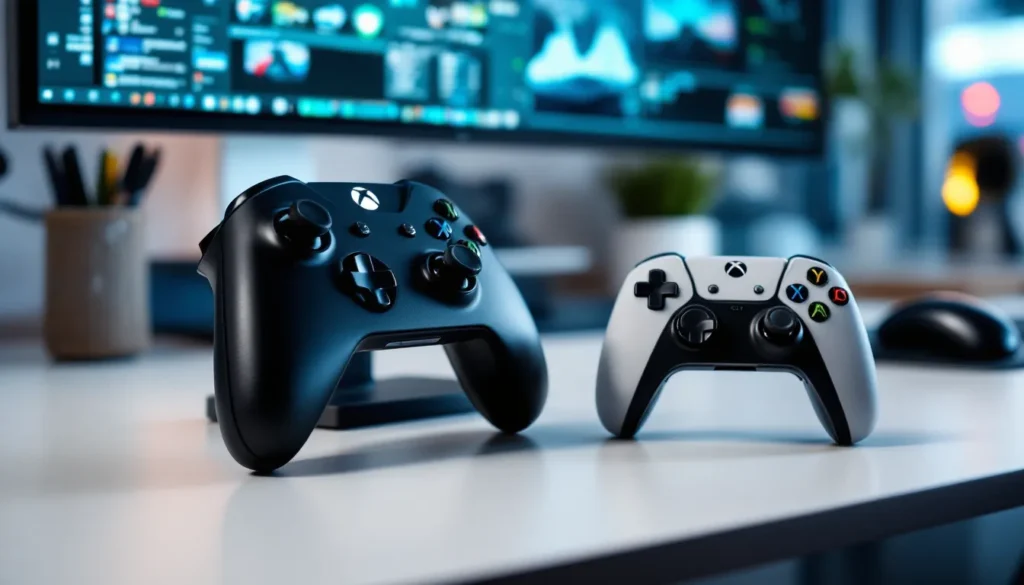
All modern Xbox controllers work with Steam Deck, but here’s the breakdown:
Xbox One Controller (Gen 1 & 2): The standard black or white controllers from the Xbox One era. Both wired (via USB-C adapter) and wireless (Bluetooth) options work flawlessly. These are the most common and affordable option on the used market.
**Xbox Series X
|
S Controller**: The newer controllers bundled with current-gen Xbox consoles feature improved Bluetooth connectivity and grip ergonomics. They pair slightly faster than older models and are fully supported.
Xbox Elite Controller Series 1 & 2: The premium, customizable controllers work perfectly with Steam Deck. The Series 2 adds Bluetooth connectivity, which is handy for wireless play.
Original Xbox 360 Controller: Older wireless 360 controllers require a legacy wireless adapter (not Bluetooth-based), which can be finicky. They’re not recommended unless you already own one: newer Xbox One pads are better.
For the best experience, stick with Xbox One or Series X
|
S controllers. They’re modern, widely available, and Valve has optimized support around them.
Step-By-Step: Connecting Your Xbox Controller Via Bluetooth
Bluetooth is the cleanest way to connect your Xbox controller to Steam Deck, offering wireless freedom without cable clutter. Here’s how to do it.
Enabling Bluetooth On Your Steam Deck
First, power on your Steam Deck and enter the Settings menu. You can access this from the desktop by pressing the Steam button and selecting Settings, or by exiting Game Mode entirely.
Navigate to Settings > Bluetooth and toggle the Bluetooth switch On. Your Steam Deck will begin scanning for nearby Bluetooth devices. This should take a few seconds, and you’ll see a “Scanning…” indicator on the screen.
Leave Bluetooth enabled and move to the next step. Don’t exit this menu yet: you’ll need it open to complete the pairing process.
Pairing Your Xbox Controller
Now grab your Xbox controller and locate the Pair button. On Xbox One and Series X
|
S controllers, it’s a small circular button on the top edge of the controller, near the top-left corner. Press and hold this button for 3-5 seconds until you see the LED light on the controller begin flashing rapidly. This indicates the controller is in pairing mode.
Back on your Steam Deck, your Bluetooth menu should now display your Xbox controller as an available device. It will likely show up with a name like “Xbox 360 Controller” or “Xbox One Controller” depending on your model. Tap on it to initiate pairing.
Your Steam Deck will confirm the connection, and the LED on your Xbox controller will stop flashing and settle into a steady glow, indicating it’s connected. The process usually takes 5-10 seconds. If it doesn’t connect on the first try, repeat the pairing button hold on your controller and select it again from the Bluetooth menu.
Verifying The Connection
Once paired, test your connection by exiting Settings and launching a game. Press a button on your Xbox controller, any button, and verify that your input registers in-game. If you’re in the Steam Deck’s desktop, press the guide button (the Xbox logo) to confirm recognition.
A quick way to check is to open a game from your Steam library and see if the controller is automatically detected. Most games will prompt you to “press a button to continue” or display controller input hints on screen. If these work, your Xbox controller is fully connected and ready to go.
USB-Wired Connection: An Alternative Method
If Bluetooth feels unreliable or you want guaranteed latency-free gameplay, a wired USB connection is your answer. Older Xbox controllers don’t have Bluetooth and require this method anyway.
Wiring up is simple: Grab a USB-C to USB-A adapter (most Steam Deck owners have one already), plug your Xbox controller’s standard USB cable into the adapter, and connect it to the Steam Deck’s USB-C port on the bottom. Your Steam Deck will recognize the controller immediately, no pairing menu needed.
Wired connections are bulletproof for online competitive play or fighting games where every millisecond matters. You won’t experience Bluetooth dropouts or interference, and your battery never drains.
When To Use A Wired Connection
Wired is best for:
- Competitive online gaming: Titles like Counter-Strike 2, Valorant, or fighting games benefit from the minimal latency.
- Extended play sessions: If you’re tethered to a desk or couch anyway, the cable is negligible, and your controller battery stays charged indefinitely.
- Older Xbox 360 controllers: If you’re using a legacy wireless 360 controller, the wired option (via the official adapter) is often more stable than attempting to pair via Bluetooth.
- Troubleshooting Bluetooth issues: If your wireless connection keeps dropping, swap to wired temporarily to rule out hardware problems.
Remember: USB-C bandwidth is shared, so if you’re also charging your Steam Deck, gaming performance won’t suffer, but you’re tethered to an outlet. For casual play or single-player games, Bluetooth is more practical.
Troubleshooting Connection Issues
Even with straightforward pairing, things occasionally go sideways. Here’s how to fix the most common Xbox controller headaches on Steam Deck.
Controller Not Appearing In Bluetooth Devices
If your Xbox controller doesn’t show up in the Bluetooth menu at all, try these steps:
Power cycle both devices: Turn off your Xbox controller completely (press and hold the power button until the light goes out). Wait 10 seconds, then turn it back on. On your Steam Deck, toggle Bluetooth off, wait 5 seconds, and toggle it back on.
Re-enter pairing mode: Make sure you’re holding the Pair button on your controller long enough. A brief tap won’t work, hold it for a full 5 seconds until the light flashes rapidly and erratically. Some older controllers need this held even longer.
Check for interference: Bluetooth operates on the 2.4 GHz frequency, which is crowded. Wi-Fi routers, microwaves, and other wireless devices can interfere. Try moving away from these sources or temporarily disabling Wi-Fi on your Steam Deck (Settings > Wi-Fi) to test.
Update your Steam Deck: Go to Settings > System > Check for Updates and install any available firmware. Valve regularly patches Bluetooth driver issues, and updating often resolves pairing problems.
If none of this works, your controller’s Bluetooth chip may be faulty. Try a different Xbox controller to confirm, or consider switching to wired mode to continue gaming while you troubleshoot.
Disconnection Problems And Lag
If your controller keeps dropping or feels laggy during gameplay:
Re-pair the controller: Sometimes a fresh pairing clears up flaky connections. Remove the controller from your Bluetooth devices (Settings > Bluetooth, then select your controller and choose “Forget”), power cycle both devices, and pair from scratch.
Reduce Bluetooth range: Oddly, moving closer to your Steam Deck can help if you’re at the edge of the Bluetooth range (about 30 feet). Bluetooth signals weaken with distance, and obstacles like walls degrade the signal further.
Check battery level: A dying controller battery can cause stuttering or disconnects. Replace or recharge your Xbox controller’s batteries. For newer Series controllers with built-in batteries, plug them into a charger via USB-C.
Disable conflicting connections: If you’ve paired multiple controllers or Bluetooth devices, they might compete for bandwidth. Unpair unused devices from Bluetooth settings.
Update controller firmware: Connect your Xbox controller to a PC or console running the latest Xbox app and update its firmware. Microsoft pushes stability improvements regularly, and this can eliminate lag.
Button Mapping And Configuration Issues
Occasionally, buttons register incorrectly, or you need custom mappings for a specific game.
In Steam’s Big Picture Mode, press the Menu button and navigate to Settings > Controller > Controller Settings. Here, you can see which buttons map to what and test each input. If a button isn’t registering, try recalibrating by selecting Calibrate and following the on-screen prompts.
For game-specific mapping, Steam allows per-game controller configurations. Launch a game, press Menu while in-game, go to Controller Settings, and tweak the layout. Save it as a new preset, and Steam will apply it automatically when you play that game again.
If buttons still feel unresponsive, your controller’s internal contacts may be dirty. Power down and gently clean the button caps with a dry cloth. For stick drift (analog stick reporting movement when untouched), this often indicates hardware wear: recalibration sometimes helps temporarily, but a replacement controller may be necessary if it persists.
Optimizing Your Xbox Controller Experience On Steam Deck
Once your Xbox controller is connected and working, a few tweaks can elevate your setup.
Adjusting Controller Settings In Steam
Steam Deck’s controller settings are robust. Beyond basic remapping, you can adjust stick sensitivity, trigger deadzone, and haptic feedback intensity.
In Settings > Controller > Advanced Settings, you’ll find sliders for Stick Sensitivity (how fast the cursor moves) and Stick Deadzone (the threshold before movement registers). For shooters, a tighter deadzone and higher sensitivity let you aim more precisely. For platformers, looser settings feel more forgiving.
Haptic Feedback is the rumble your controller provides. You can dial it up for immersive action games or dial it down if it drains batteries faster. Some players disable it entirely for competitive games where battery life matters.
Trigger Sensitivity controls how much pressure you need to apply for buttons like LT/RT to register. Lower values mean lighter taps register faster, useful for fighting games or rhythm titles.
These settings sync across your Steam library, so you only adjust them once. If you want game-specific overrides, create a new controller profile (in the same menu) and assign it to individual titles.
Game-Specific Configuration Tips
Not all games map Xbox buttons the same way. Some default to PlayStation button labels (Triangle, Circle, etc.), which can confuse muscle memory.
For games not optimized for Xbox controllers, you may need to navigate a UI designed for mouse and keyboard. Steam’s Desktop Layout controller mode can help here, it maps buttons to mouse movements and clicks. Access this in the per-game controller settings and test it before committing.
Fighting games and roguelikes benefit from custom mod profiles that you can save and load. For example, you could create a “Neutral” profile for shooters and a “Claw Grip” profile for action RPGs, swapping between them as needed.
If a game doesn’t recognize your Xbox controller at all, your Steam Deck likely needs an SteamOS update. Older titles predate Xbox controller support, and updating fixes this. Alternatively, enabling Steam Input (which emulates keyboard and mouse input) can make nearly any game playable, though it requires more configuration.
Battery Management And Firmware Updates
Battery drain is a real concern when gaming portably. Xbox One and Series controllers use AA batteries (rechargeable or disposable), while Series 2 and newer use built-in rechargeable packs.
For AA-powered controllers: Keep a spare set of batteries on hand, or invest in rechargeable NiMH batteries. They’ll power your controller for 30+ hours of gameplay. Monitor battery life in the Xbox App on your Steam Deck (press the Guide button and look at the battery icon).
For built-in battery controllers: Charge via USB-C before long sessions. A full charge gives 40+ hours, so you won’t need daily charging if you’re not gaming constantly.
Keep your Xbox controller’s firmware up to date. While SteamOS handles driver support, the controller itself has onboard firmware that Microsoft updates. Connect your controller to the Xbox app on PC or use the Xbox Accessories app to download and install the latest version. These updates improve Bluetooth stability, reduce lag, and sometimes add features.
Finally, consider exploring the Steam Deck category on Scrolllevel for more advanced guides on maximizing your handheld’s potential. Topics like remote play setup can complement your controller optimization, allowing you to extend your gaming beyond the device itself.
Conclusion
Connecting your Xbox controller to your Steam Deck is a straightforward process that opens up new ways to enjoy your handheld. Whether you go wireless via Bluetooth for untethered freedom or plug in USB for rock-solid latency, you now have the knowledge to pair, configure, and troubleshoot without guesswork.
The Steam Deck’s flexibility shines when you match it with familiar hardware like an Xbox controller. Local co-op sessions, lengthy RPG campaigns, and competitive shooters all feel more natural with a full-sized gamepad. If you run into issues, the troubleshooting steps covered here address 99% of real-world problems, from pairing hiccups to button mapping quirks.
One last tip: keep your Steam Deck and controller firmware current. Valve and Microsoft release updates regularly that smooth out rough edges and improve compatibility. With everything dialed in, you’re ready to game on your terms, with the controller that feels right in your hands.