Table of Contents
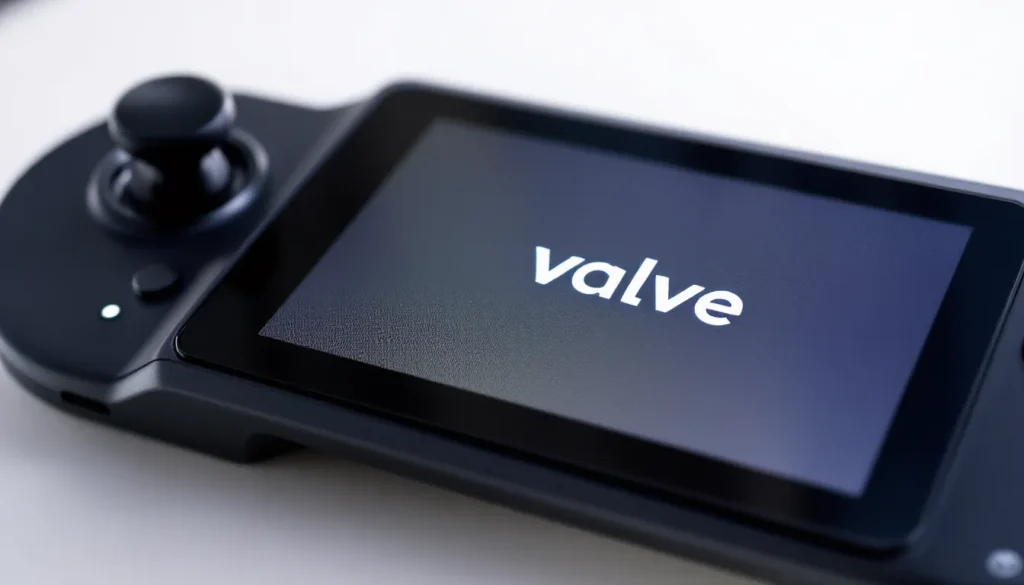
ToggleNothing kills the gaming vibe faster than your Steam Deck refusing to boot past the logo screen. You press the power button with anticipation, the Valve logo appears, and then… nothing. It just sits there. If you’re staring at that frozen startup screen right now, you’re not alone, and the good news is that this issue is usually fixable without sending your device off for repair.
Whether you’re dealing with a software glitch, a corrupted update, or a more serious hardware hiccup, this guide walks you through every troubleshooting step from the quickest fixes to the nuclear options. By the end, you’ll either have your Deck booting normally or know exactly when it’s time to contact Valve support.
Key Takeaways
- When your Steam Deck stuck on logo appears, start with basic fixes: force restart by holding the power button for 10+ seconds, charge for at least 15 minutes, and wait up to 10 minutes for the boot process to complete.
- Access Safe Mode by holding Volume Down while pressing power to troubleshoot failed updates and system integrity issues without the full SteamOS interface interfering.
- A factory reset wipes system settings but preserves your installed games and saves, making it a safe nuclear option for persistent software issues.
- Hardware failure signs include no button responsiveness, completely black screens, physical damage, excessive heat, or inconsistent boot attempts that suggest motherboard or battery problems.
- Prevent future logo screen freezes by avoiding interrupted updates, maintaining 15-20% free storage space, using proper shutdown procedures, and staying current with SteamOS updates.
- Contact Valve support if you’ve exhausted all troubleshooting steps; most Steam Decks are covered under the 2-year warranty for hardware defects.
What Does It Mean When Your Steam Deck Gets Stuck On The Logo Screen?
Why This Problem Occurs
When your Steam Deck gets stuck on the logo screen, it’s telling you that the device is trying to boot, the power’s on, the startup sequence has kicked off, but something’s preventing it from reaching the main interface. This could be anything from a software hiccup during an update to corrupted files in storage, or in worst-case scenarios, a hardware malfunction.
Most logo screen freezes happen right after a system update fails, the device crashes unexpectedly, or you force-shut it down mid-process. SteamOS is generally stable, but like any operating system, it can stumble. The key difference between a true freeze and a slow boot is timing and responsiveness.
How To Tell If Your Device Is Actually Frozen
The first instinct is panic, but your Steam Deck might not actually be stuck. Sometimes the boot process is just slower than you expect, especially on the first startup after an update.
Hold the power button for a few seconds and watch for subtle signs: Does the screen flicker? Are there any loading indicators or sound cues? If you see absolutely nothing changing for more than 5 minutes, and the screen isn’t even slightly warm, there’s a real problem. A legitimately stuck device will show zero responsiveness to button presses and zero signs of processing.
If it’s genuinely frozen, no movement, no heat, no sound, you’re ready to move to troubleshooting.
Basic Troubleshooting Steps To Try First
Force Restart Your Steam Deck
Before you panic and think about factory resets, try the simplest fix first: a forced restart.
Hold the power button for at least 10 seconds, don’t just tap it, until the device completely powers down. You might hear a click or feel the haptic feedback, but the key is holding it long enough for the Deck to force-shut. Wait 30 seconds, then press the power button once and let it boot naturally.
This clears the device’s RAM, halts any stuck processes, and gives SteamOS a fresh start. It works surprisingly often, especially if the freeze happened due to a temporary software glitch or interrupted startup sequence.
Check Your Battery Level
This sounds obvious, but a critically low battery can cause the Steam Deck to hang during boot. If the battery is below 5%, the device might not have enough power to complete the startup sequence, leaving you staring at the logo indefinitely.
Plug your Deck into power, use the official USB-C power adapter if possible, and wait at least 15 minutes while it charges. Even a small charge can be enough to push through the boot process. Once you see the system fully load, you’ll know the battery wasn’t the culprit.
If it boots successfully after charging, your issue is resolved. If it still hangs, the problem lies elsewhere.
Wait For The Boot Process To Complete
Here’s the hard truth: sometimes you just need patience. On the first boot after a major SteamOS update, or if your storage is particularly full, the startup can take longer than expected, sometimes 2-3 minutes before the home screen appears.
Set a timer for 10 minutes and let the device sit undisturbed. Don’t press buttons, don’t disconnect power, just wait. If the Deck is genuinely processing (even if imperceptibly to you), interrupting it makes things worse. If nothing happens after 10 minutes of charging and waiting, you’ve got a legitimate freeze on your hands and can move to the next tier of fixes.
Advanced Fixes For Persistent Logo Screen Issues
Enter Safe Mode And Troubleshoot From There
If basic restarts aren’t cutting it, Safe Mode is your next weapon. This boots the Steam Deck into a minimal environment where you can diagnose and fix problems without the full SteamOS interface interfering.
To access Safe Mode, power off your Deck completely (hold the power button for 10+ seconds). Then hold the Volume Down button and press the power button. Keep holding Volume Down until you see a white “Deck” logo on a dark background, that’s Safe Mode. You’ll see a menu with options like Update, Restore, or Power Off.
Stay in Safe Mode for now. This environment lets SteamOS check for system integrity issues and complete failed updates. If a SteamOS update didn’t finish properly, Safe Mode can detect and complete it automatically. Restart the device from Safe Mode and see if it boots normally. If it does, the update was the culprit and you’re fixed.
Perform A Factory Reset Without Losing Games
This is the nuclear option that actually isn’t as terrible as it sounds. A factory reset wipes your system settings but keeps your installed games intact, meaning you won’t lose your library, save files, or any downloaded content.
But, don’t do this lightly. Make sure you’ve actually tried Safe Mode first. Here’s the process:
- Power down the Deck completely.
- Hold Volume Down and press power to enter Safe Mode.
- Select Restore from the menu.
- The device will ask if you want to back up user data. Select Yes, this preserves your games and saves.
- Confirm the restore process. This wipes SteamOS and reinstalls it from scratch.
- The process takes 10-15 minutes. Don’t interrupt it.
- Once complete, boot normally and log into your Steam account.
Your games will reappear in your library, and you’ll be back to a fresh system. If this doesn’t solve the logo freeze, you’re dealing with hardware damage, not a software issue.
Update SteamOS To The Latest Version
Sometimes the logo freeze is caused by being stuck on an outdated SteamOS build. If Safe Mode detected a failed update, you’ll want to ensure you’re on the absolute latest version.
If your Deck is stuck on the logo, it can’t update normally through the settings menu. Instead, use Safe Mode. In Safe Mode, select Update and let it check for the latest SteamOS version available. If an update is available, it’ll download and install automatically. This is especially important if you’ve been away from your Deck for a while, your device might be several updates behind.
After the update completes in Safe Mode, restart normally. Updated systems are more stable, and this often clears mysterious boot issues.
Hardware-Related Causes And Solutions
Storage Issues And Corrupted Files
If your Steam Deck’s internal storage is packed beyond capacity or contains corrupted files, it can struggle to boot. The device has to load critical system files to display even the logo screen properly, and if those files are damaged or the storage is too fragmented, the boot sequence stalls.
Check if you’ve been aggressively filling your storage. The Deck needs some free space, typically at least 10% of your total drive, to function smoothly. If you’re running on 256GB and you’ve installed 240GB worth of games, you’re asking for trouble.
Unfortunately, if you’re stuck on the logo, you can’t just delete files from the settings menu. This is where that factory reset comes in. When you restore in Safe Mode, it clears corrupted files and fragments, giving you a fresh filesystem. Once you’re back up and running, be more conservative with your storage. Upgrade Steam Deck storage with a microSD card for expandable space, or stick to a 256GB total library if you’re using the base model.
Battery Or Power Delivery Problems
A dying battery or a power delivery (PD) chip malfunction can also cause logo screen freezes, especially if the device thinks it’s losing power and shuts down mid-boot.
If your Deck is stuck on the logo after months of use, the battery might be degrading. Lithium batteries lose capacity over time, and if yours has dipped significantly, the device might be cutting the boot process short to preserve what little power remains. Try letting it charge on the official USB-C charger for at least 2 hours (not just 15 minutes). If it boots after a full charge, battery degradation is the issue, and you’re looking at potential warranty service.
Power delivery problems are trickier. If the Deck can’t properly detect incoming power from the charger, it might refuse to start. Try a different USB-C cable if you have one. If it still won’t boot with multiple chargers, the PD circuit might be failing, which requires professional repair.
When To Seek Professional Help Or Warranty Support
Identifying Hardware Failure Signs
At a certain point, you’ve done everything you can. If you’ve tried forced restarts, waited patiently, entered Safe Mode, and performed a factory reset, and your Deck still won’t boot past the logo, you’re likely dealing with a hardware failure.
Hardware failures typically show these patterns: the device won’t respond to any button presses at all (not even Safe Mode), the screen remains completely black instead of showing the logo, there’s physical damage visible (cracks, liquid damage, heat warping), or the Deck generates excessive heat and won’t charge properly.
Another telling sign: if the device boots once every few attempts but then freezes again, there’s probably something wrong with the motherboard, storage controller, or battery connection. This inconsistency points to component failure, not software.
Contacting Valve Support And Using Warranty Services
If you suspect hardware failure, contact Valve support through the official Steam Deck support portal. They’re generally responsive and can guide you through remote troubleshooting if there’s any remaining doubt.
Here’s what to do:
- Visit the official Valve support page and select “Steam Deck” as your product.
- Describe the issue in detail, when it started, what you’ve already tried, and whether there’s any physical damage.
- Valve will often ask for photos of the device and a full troubleshooting history before deciding on repair or replacement.
- If your Deck is within the 2-year warranty period (standard in the US: varies by region), you’re usually covered for hardware defects.
When sending your device in for repair or replacement, be aware it’ll take 1-2 weeks depending on Valve’s backlog. Meanwhile, remote play features to stream your Steam library to another device while you wait. Also, make sure your Steam account is secure, Valve may ask for proof of ownership before processing warranty claims.
Prevention Tips To Avoid Logo Screen Issues In The Future
Once you’ve got your Steam Deck working again, take steps to prevent this nightmare from happening again.
Don’t interrupt system updates. This is the biggest culprit. When SteamOS is updating, let it finish, even if it takes longer than expected. Force-shutting down mid-update corrupts system files and can trigger logo freezes. Plug in your Deck and give it dedicated charging time during updates.
Keep some storage free. Maintain at least 15-20% of your drive as free space. This gives SteamOS room to breathe, prevents file fragmentation, and keeps the boot process smooth. If you’re constantly at 95% capacity, you’re inviting problems. A modded Steam Deck with custom storage solutions actually benefits from better space management practices.
Shut down properly. Use the power menu in SteamOS to shut down, rather than force-shutting down. It takes 10 extra seconds and ensures all processes close cleanly. Reserve force-shutdowns for genuine freezes only.
Monitor battery health. If your Deck is over a year old and you’re seeing boot issues, battery degradation might be creeping in. Keep tabs on how long it holds a charge during normal gaming. Slow charging or unexpected shutdowns at 20% battery are warning signs. Many gamers also recommend not leaving the Deck plugged in 24/7, as constant charging degrades battery longevity.
Stay updated. Paradoxically, keeping SteamOS up-to-date prevents most boot issues. Each update patches stability bugs and improves hardware compatibility. Check for updates monthly, even if your Deck seems fine. You can do this through Settings > System > Check for Updates.
Use external storage wisely. If you’re using a microSD card for game storage, ensure it’s a high-speed card (UHS-II, A2 rated minimum). Slow or corrupted SD cards can cause boot slowdowns. Keep your SD card in good condition and replace it every few years as storage media degrades.
These habits might seem minor, but they’re the difference between a Steam Deck that runs flawlessly for years and one that gives you constant headaches. Prevention is always cheaper and easier than troubleshooting.
Conclusion
A Steam Deck stuck on the logo is frustrating, but it’s rarely a death sentence. The vast majority of cases resolve with a forced restart, Safe Mode troubleshooting, or a factory reset. Only a small percentage actually indicate hardware failure, and even then, Valve’s warranty usually has you covered.
Start with the basics (restart, charge, wait), escalate to Safe Mode and system updates, and only consider a factory reset if those don’t work. And if nothing works, contact Valve support, they’ve handled thousands of these cases and know exactly what to do.
Moving forward, respect your Deck’s update cycles, manage your storage, and shut down properly. A little prevention goes a long way toward keeping your portable gaming powerhouse running smoothly for years. The Steam Deck is built tough: treat it right and it’ll treat your gaming library right too.